
Lean Open Finance Data Integration Guide
A step by step introduction to building with Lean Open Finance Data APIs in the United Arab Emirates.
Lean Environments
- Sandbox: to get started with test credentials and mock bank users and data.
- Production to launch your app with live credentials and connect with real banks.
- Lean Dashboard
RecommendedFor business continuity, we recommend you to create a new mailing group dedicated to Lean's integration (i.e:[email protected]) and add all the relevant employees to this group. Then, developers/employees can be added/invited to your sandbox account via our Developer Portal's "Team" feature/section.
Step 1: Authenticating with OAuth
OAuth secures Lean APIs and infrastructure using public and private secrets paired with short-lived access tokens, to get started, you'll need:
- An Application Dashboard account with Admin or Developer role access.
- Your Application ID and Client Secret (found under the 'Integration' tab in the Application Dashboard).
- An application with access to OAuth as an authentication method.
Scopes & The OAuth flow
OAuth is implemented to secure two channels of access to Lean. Access from your backend to Lean's APIs with scope=api, and access for your customers to the Lean Link SDK with scope=customer.<customer_id>.
In both cases the flow for creating, editing or modifying resources on the Lean platform is the same.
- Generate an access token for the request, this will return a JSON Web Token (JWT)
- Use the JWT as a Bearer token in subsequent API calls, or as an authentication for the Link SDK method call you want to make
- Tokens must be generated in your backend to avoid using the client secret in your frontend since it's vulnerable
Generating Access Tokens for Backend API Calls
curl -X POST 'https://auth.leantech.me/oauth2/token' \
--header 'Content-Type: application/x-www-form-urlencoded' \
--data-urlencode 'client_id=<LEAN_APPLICATION_ID>' \
--data-urlencode 'client_secret=<LEAN_CLIENT_SECRET>' \
--data-urlencode 'grant_type=client_credentials' \
--data-urlencode 'scope=api'
Generating Customer Access Tokens for LinkSDK Flow
curl -X POST 'https://auth.leantech.me/oauth2/token' \
--header 'Content-Type: application/x-www-form-urlencoded' \
--data-urlencode 'client_id=<LEAN_APPLICATION_ID>' \
--data-urlencode 'client_secret=<LEAN_CLIENT_SECRET>' \
--data-urlencode 'grant_type=client_credentials' \
--data-urlencode 'scope=customer.<customer_id>'| Parameter | Description | Type |
|---|---|---|
| client_id | Your application ID - this can be retrieved from your Application Dashboard account. | String (UUID) |
| client_secret | Your client secret - this can be retrieved once from your Application Dashboard - subsequent retrievals will invalidate your existing client secret. | String |
| grant_type | The type of access you require a token for - currently this should always be set toclient_credentials | String |
| scope | What the scope of the access token should be, either api or customer.<customer_id> | String |
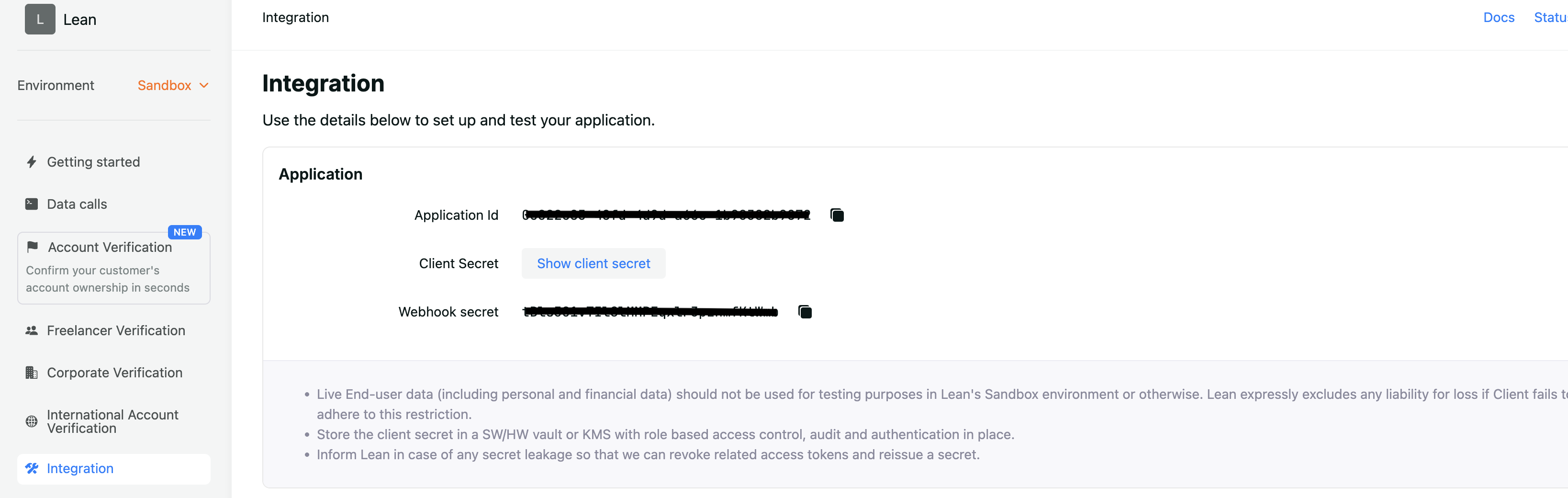
How to get client\_id & client\_secret
- Sign up to Lean Dashboard
- Go to Integration tab and find both paramters for your apllication as shown below:
Response
{
	"access_token": "YOUR_ENCODED_JWT",
	"token_type": "bearer",
	"expires_in": 3599,
	"scope": "api",
}| Parameter | Description | Type |
|---|---|---|
| access_token | The access token value for use with the Lean APIs | String |
| token_type | Will always be bearer, indicates the type of token returned | String |
| expires_in | The time in seconds until the access token expires | Integer |
| scope | The scope of the access token and what resources it can access | String |
More details about authentication here.
Step 2: Create Customer
In order to start the consent journey and fetching data, you first need to create a Customer resource. This creates a relationship between your application, user and all the services they consume within Lean into a single object.
To create a Customer, call the /customers/v1 endpoint with a reference to your app_user_id.
curl -X POST 'https://sandbox.leantech.me/customers/v1/' \
  --header 'Content-Type: application/json' \
  --header 'Authorization: Bearer <backend_api_access_token>' \
  --data-raw '{"app_user_id": "YOUR_IDENTIFIER_FOR_CUSTOMER"}'
Please note:
app_user_idhas a unique constraint, but does not need to map directly to the id of the user in your database, for example you could passprod_usr_1246as theapp_user_id, so that you can identify that the Customer is a user of your production database. In this case, you should save both thecustomer_idandapp_user_idagainst your user table for later retrieval and mapping.
As part of the response you will receive the Lean customer_id which you should save against your user table for future reference.
{
  "app_user_id": "IDENTIFIER_FOR_CUSTOMER",
  "customer_id": "f08fb010-878f-407a-9ac2-a7840fb56185"
}
Step 3: Link SDK Consent Journey
Lean Link SDK enables you to embed the user bank connections flow directly into their applications. It's available on platforms including Web, iOS, Android, React Native and Flutter.
Check it out here
Live demo of Lean LinkSDK
The connect method is used to connect a customer to the Data API. You can use this method to generate an Entity with a single customer login.
Required fields
| Field | Type | Description |
|---|---|---|
app_token | string | Your Lean application token from the Lean dashboard. |
customer_id | string | Unique identifier of the end customer in your system. |
permissions | string[] | Permissions to request. Must contain at least one value. "accounts", "identity", "balance","transactions", "beneficiaries", "identities", "scheduled_payments", "direct_debits", "standing_orders" |
access_token | string | A valid Lean JWT with customer scope. When provided, the SDK skips its own auth step and uses this token as the Authorization: Bearer header on every API request. The JWT must include an exp claim with at least 10 minutes of remaining validity. |
success_redirect_url | string | URL to redirect to on successful completion. |
fail_redirect_url | string | URL to redirect to on failure or cancellation. |
Optional fields
| Field | Type | Description |
|---|---|---|
access_from | date-time | The earliest date from which historical transactions can be retrieved. Must be in the past. Defaults to and is capped at 1 year ago. |
access_to | date-time | The expiry date of the consent. Must be in the future. Defaults to 24 hours from now and can be set at most 1 year in the future. |
Lean.connect({
  app_token: APP_TOKEN,
  access_token: CUSTOMER_ACCESS_TOKEN,
  customer_id: CUSTOMER_ID,
  permissions: [
    "identity",
    "accounts",
    "balance",
    "transactions"
  ],
  sandbox: true,
  language: "ar|en",
  success_redirect_url: "https://www.leantech.me/?success=true",
  fail_redirect_url: "https://www.leantech.me/?success=false",
  access_from: "2018-11-01T00:00:00+4:00", //optional
  access_to: "2022-11-01T00:00:00+4:00", //optional
});
Check it out here
Live demo of Lean LinkSDK
Data connect user flow (Open Finance)
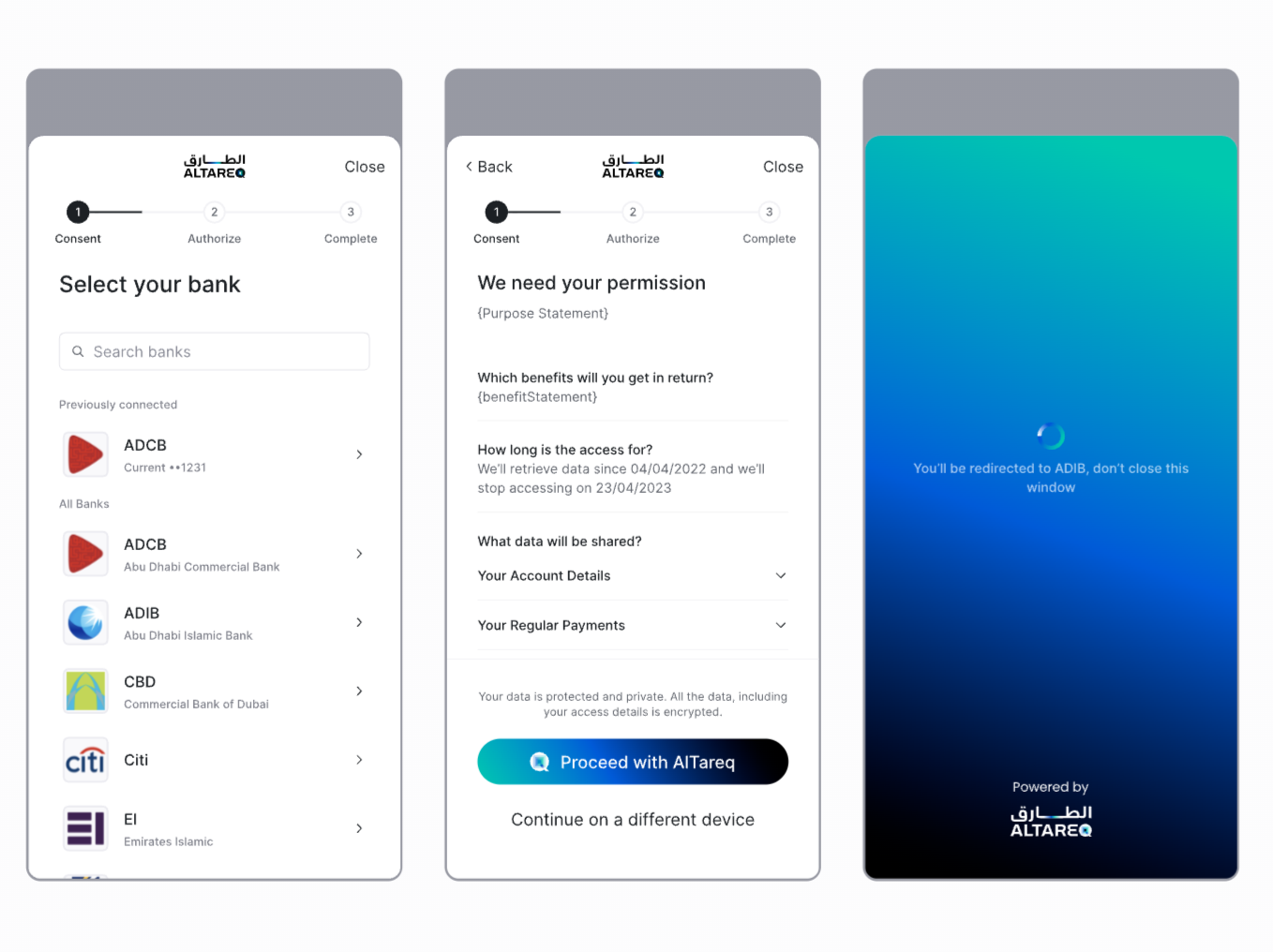
Note, the 'Al Tareq' branding in the Open Finance flow is mandatory for all Open Finance based user connections. It is a regulator driven brand initiative designed to foster end user trust and awareness
What you need to do
Configuration in Lean Dashboard
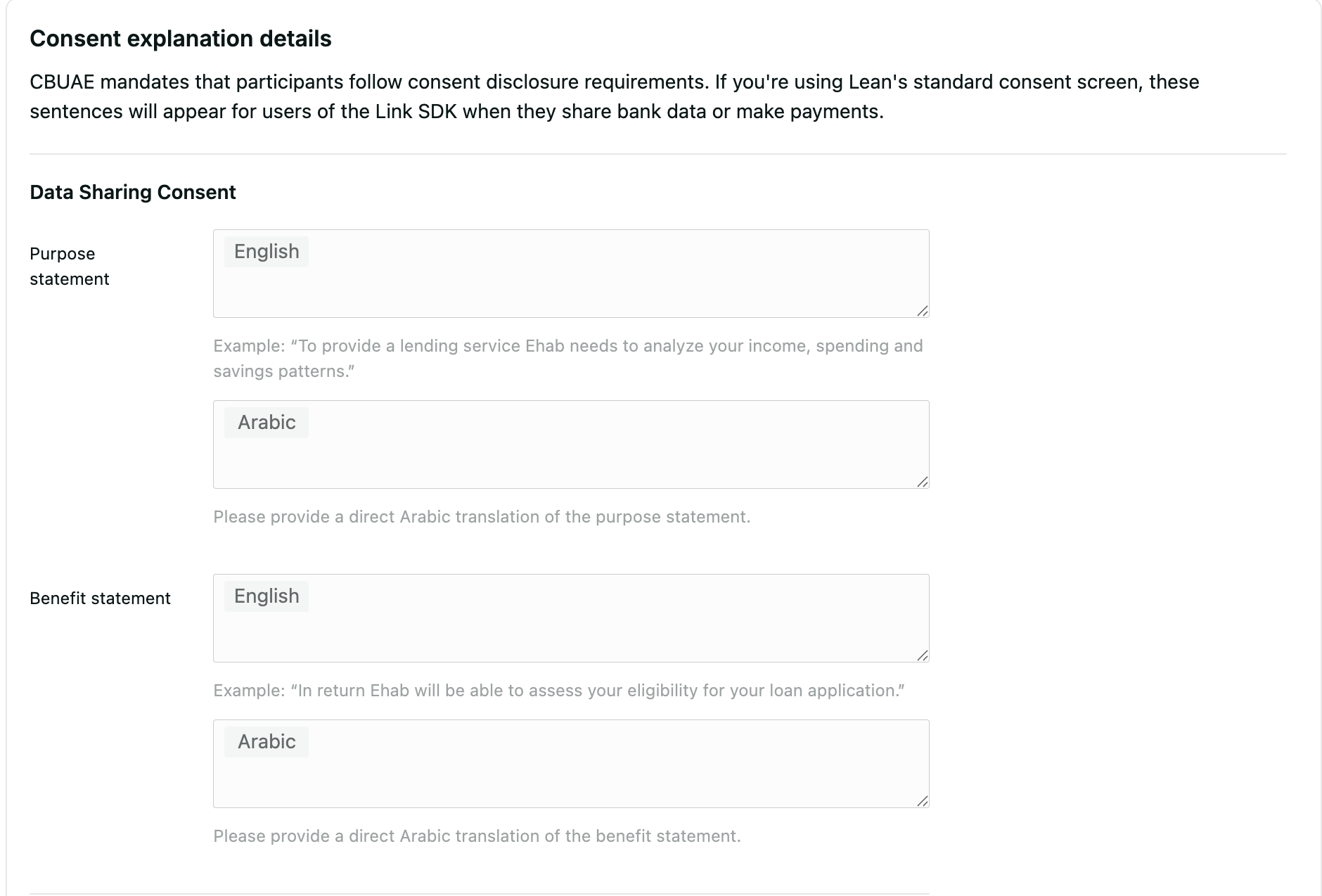
Consent copy of purpose and benefit statements
Open Finance requires you to keep your customers informed about the purpose of the bank data sharing and the reason for engagement. You can use the Settings tab in the Lean Application Dashboard to configure the following items, in both English and Arabic:
- Purpose statement for both data consents
- Benefit statement for both data consents
Redirect Urls
The Open Finance data sharing flow differs from the existing one. After the customer completes authentication and at their bank, Lean will redirect the user to the predefined URL provided during data connect flow initiation. For security reasons, this URL must be preconfigured in the Settings tab of the Lean Application Dashboard.
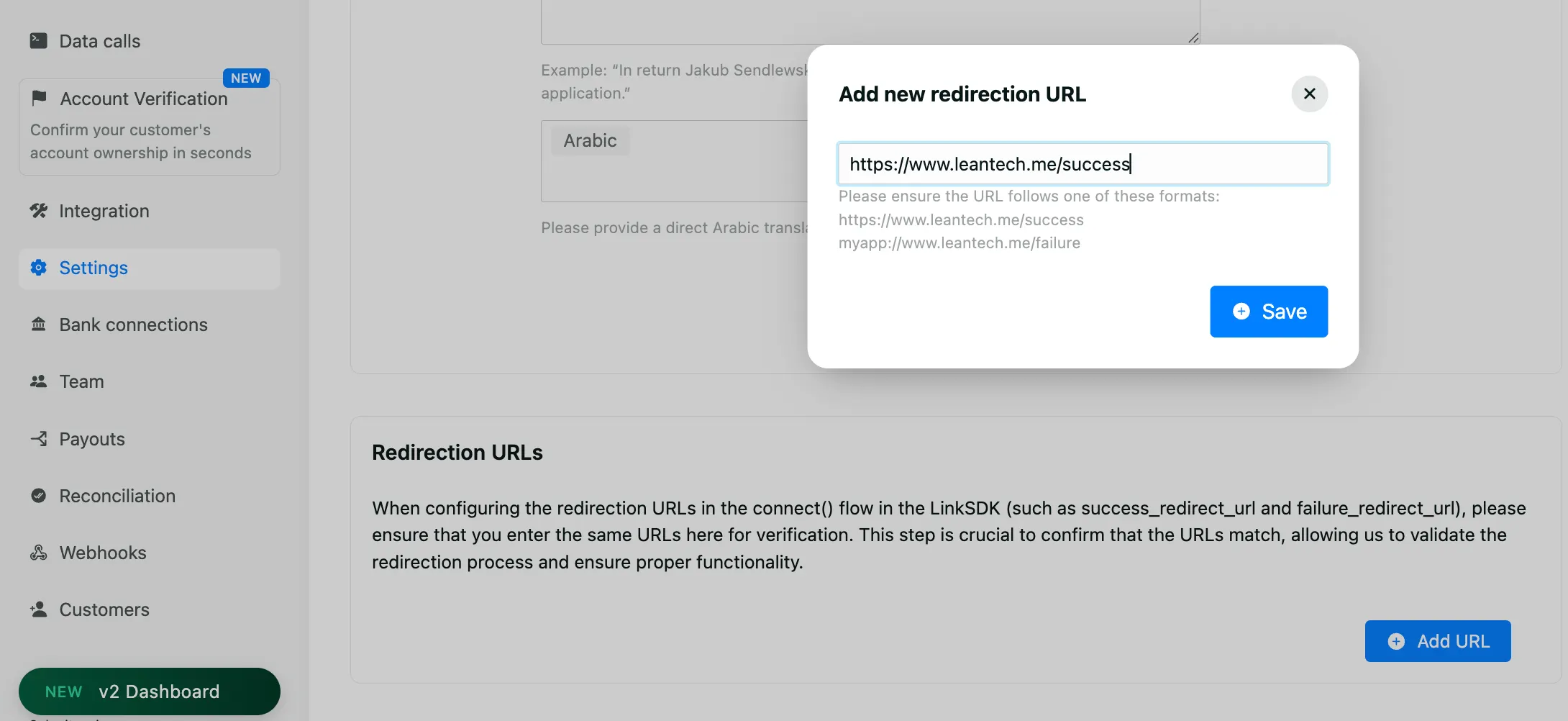
The redirect URL should display the data connect result screen provided by the Lean SDK’s captureRedirect function.
It’s important that the redirect URLs are whitelisted in Lean Application Dashboard
An example of fail_redirect_url and success_redirect_url is your mobile app deep link. The user will be redirected to these links after they finish the consent authorization flow in the bank’s app.
Capturing Redirect
After the authorisation flow completes, Lean redirects the customer to the configured redirect URL, appending a set of query parameters that describe the outcome of the attempt. These parameters include identifiers that your application can use to verify and persist the result.
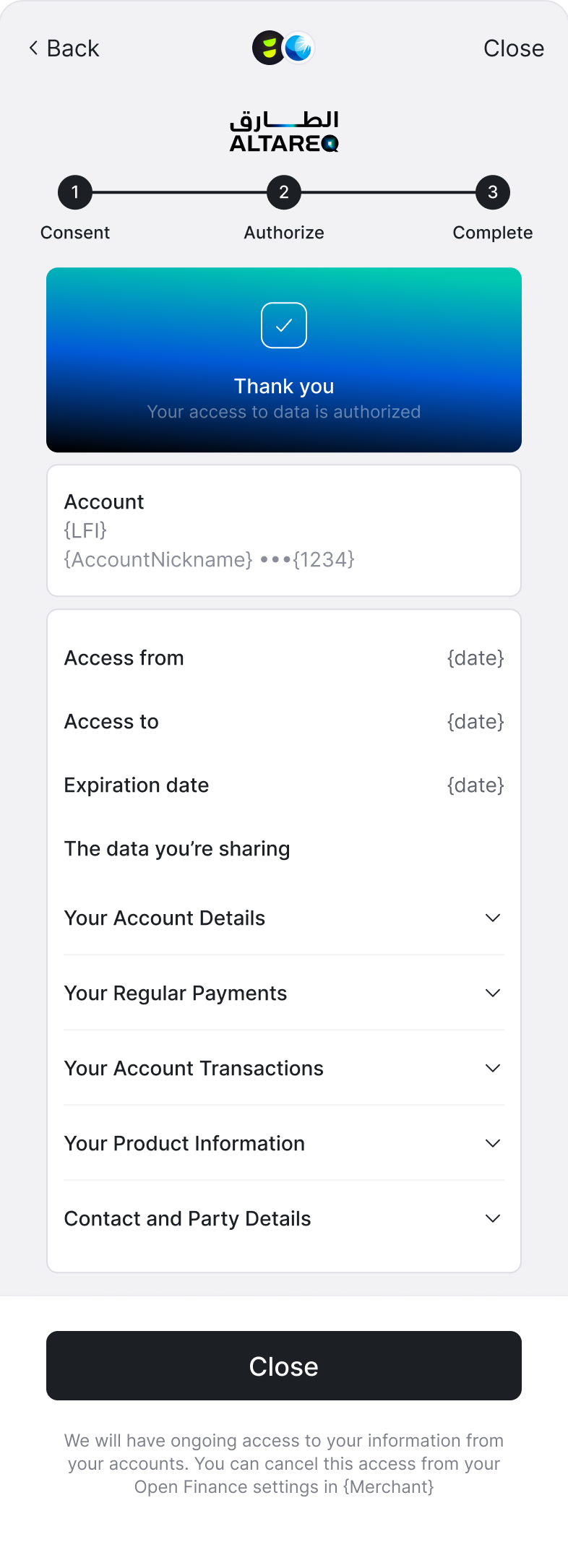
To present the final authorisation result to the customer, call the captureRedirect() function provided by the Lean Link SDK and pass the parameters received in the redirect.
https://success.leantech.me?entity_id=d7a641e7-61d4-45ed-86cb-7c2378be58e0&bank_identifier=MOCK_OF_UAE&customer_id=80306890-cc6e-476c-b2a0-c5f7d87416ef&consent_attempt_id=931f580b-03c1-4800-a1bb-68737bfde7Lean.captureRedirect({
app_token: "<your_app_id>",
access_token: "<customer_access_token>",
consent_attempt_id: "<from_query_param>",
customer_id: "<from_query_param>",
granular_status_code: "<from_query_param>", -- optional (only in case of failure)
status_additional_info: "<from_query_param>", -- optional (only in case of failure)
sandbox: true,
language: "ar|en" -- Lean SDK supports two languages: "en" (English, default) and "ar"
(Arabic).
})This should result in a screen similar to
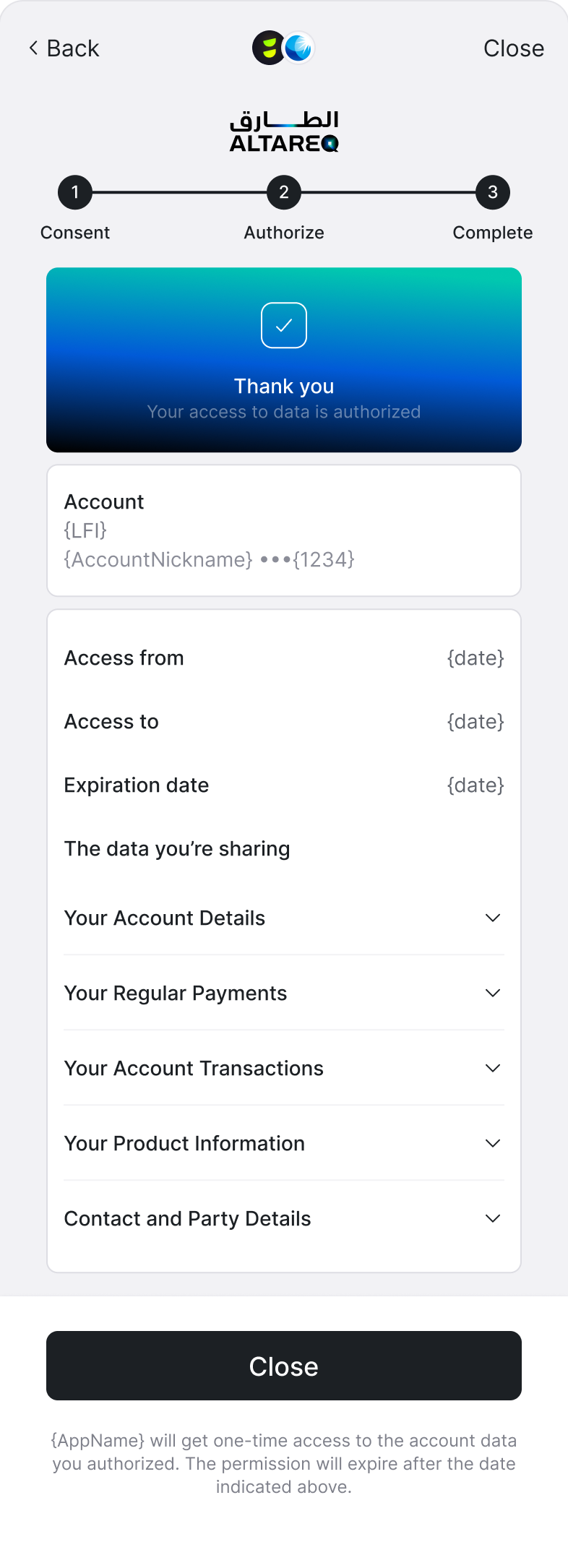
And for short lived consent the result will be as below
Step 4: Webhooks
Webhooks are used to immediately notify your backend of events that take place in the Lean ecosystem. These are especially useful for events that take place on your front end through the Lean SDK or events that take place in data workflow like data refreshes . Once you receive an event on your server, you can process and act on it as you need.
More details about webhooks here including IP whitelisting and retry policy.
The following are the main webhooks for connecting the bank accounts of your users:
Entity created
"type": "entity.created"
This webhook is triggered when your customer successfully connects their account with the bank. The entity object is used by you to retrieve data from your customer's bank account. Where the entity_id serves as a token representing the holding bank account.
{
	"type": "entity.created",
	"message": "An entity object has been created.",
	"payload": {
  	"id": "dd64bba9-9446-4ca0-b9ed-bec2b2a49024",
		"app_user_id": "lean_test_framework_user_1678954843328",
		"customer_id": "a8e9bf82-245a-4f5c-b048-9024fd7910cb",
		"permissions": [
    	"transactions", "identity", "identities", "accounts",
    	"standing_orders", "direct_debits", "scheduled_payments", "beneficiaries"
    ],
    "bank_details": {
    	"logo": "https://cdn.leantech.me/img/banks/white-lean.png",
      "name": "Lean SAMA Open Banking MockBank",
      "account_type": "PERSONAL",
      "identifier": "LEA1_SAMAOB_UAE",
      "main_color": "#1beb75",
      "background_color": "#ffffff"
    }
  }
}
Entity Data Refresh Updated
"type": "entity.data.refresh.updated"
The entity.data.refresh.updated webhooks notify the progress of fetching data for a connected entity: where a final entity.data.refresh.updated webhook with status FINISHED webhook is sent once all data types have been completed and data is available to retrieve in Lean store via API calls.
All API responses include a refreshed_at date-time attribute in the response body representing the last data-time when from source was refreshed.
To refresh data from the source provider, call the /data/v2/refreshes endpoint while the consent is still active. This triggers
entity.data.refresh.updatedwebhooks once the refresh cycle completes. For more detail, see the data workflow guide.
{
  "type": "entity.data.refresh.updated",
  "message": "An entity data refresh state has been updated.",
  "payload": {
    "refresh_id": "d4718195-fef6-43ff-a3aa-69fc257752ab",
    "entity_id": "d4718195-fef6-43ff-a3aa-69fc257752ab",
    "app_user_id": "consent_window_24",
    "customer_id": "d4718195-fef6-43ff-a3aa-69fc257752ab",
    "status": "PENDING/FINISHED",
    "data_status": {
      "accounts": "PENDING/SUCCESS/FAILED/UNSUPPORTED",
      "identity": "PENDING/SUCCESS/FAILED/UNSUPPORTED",
      "account_data": [
        {
          "account_id": "d4718195-fef6-43ff-a3aa-69fc257752ab",
          "balance": "PENDING/SUCCESS/FAILED/UNSUPPORTED",
          "identity": "PENDING/SUCCESS/FAILED/UNSUPPORTED",
          "transactions": "PENDING/PARTIAL/SUCCESS/FAILED/UNSUPPORTED",
          "scheduled_payments": "PENDING/PARTIAL/SUCCESS/FAILED/UNSUPPORTED",
          "direct_debits": "PENDING/PARTIAL/SUCCESS/FAILED/UNSUPPORTED",
          "standing_orders": "PENDING/PARTIAL/SUCCESS/FAILED/UNSUPPORTED",
          "beneficiaries": "PENDING/SUCCESS/FAILED/UNSUPPORTED",
          "transaction_availability": {
            "start": "<DateTime>",
            "end": "<DateTime>",
            "complete_months": 12
          }
        },
        {
          "account_id": "b5098d49-840d-459e-9ea1-d02901af9b8c",
          "balance": "PENDING/SUCCESS/FAILED/UNSUPPORTED",
          "identity": "PENDING/SUCCESS/FAILED/UNSUPPORTED",
          "transactions": "PENDING/PARTIAL/SUCCESS/FAILED/UNSUPPORTED",
          "scheduled_payments": "PENDING/PARTIAL/SUCCESS/FAILED/UNSUPPORTED",
          "direct_debits": "PENDING/PARTIAL/SUCCESS/FAILED/UNSUPPORTED",
          "standing_orders": "PENDING/PARTIAL/SUCCESS/FAILED/UNSUPPORTED",
          "beneficiaries": "PENDING/SUCCESS/FAILED/UNSUPPORTED",
          "transaction_availability": {
            "start": "<DateTime>",
            "end": "<DateTime>",
            "complete_months": 12
          }
        }
      ]
    }
  }
}
Entity updated
"type": "entity.updated"
This webhook is triggered when there is a change in the consents for the entity. This happens when your customer your customer reconnects the same bank account. For the first time, you will receive an entity.created webhook as mentioned above.
{
 	"type": "entity.updated",
  "message": "An entity object has been updated.",
  "payload": {
    "id": "d4718195-fef6-43ff-a3aa-69fc257752ab",
    "app_user_id": "lean_test_framework_user_1678955197525",
    "customer_id": "22df5cab-1002-4835-bc78-5d1854b3fc69",
    "permissions": [
      "transactions", "identity", "identities", "accounts",
      "standing_orders", "direct_debits", "scheduled_payments", "beneficiaries"
    ],
		"bank_details": {
      "logo": "https://cdn.leantech.me/img/banks/white-lean.png",
      "name": "Lean SAMA Open Banking MockBank",
      "identifier": "LEA1_SAMAOB_UAE",
      "account_type": "PERSONAL",
      "main_color": "#1beb75",
      "background_color": "#ffffff"
    }
  }
}
Step 5: Fetch Account Information Data APIs
The table lists all available open banking APIs and their API references:
Once the customer is connected to his bank and entity.data.refresh.updated webhook with statusFINISHED is received, you will be able to query a list of Financial Data & Insights APIs, analyze & utilize them accordingly:
Check it out here
Lean Postman Collections
| Type | APIs |
|---|---|
| Raw data (only non PII data accessable) | |
| Insights | |
| Verification |
How long is data available for in the Store?The Data Store retains data for 30 days before being securely deleted from Lean’s system.
The 30 day period is subject to change.
Wait for the
entity.data.refresh.updatedwebhook with statusFINISHEDbefore making API calls to to receive sync results and avoid API timeouts.To refresh data from the source provider, call the /data/v2/refreshes endpoint while the consent is still active. This triggers
entity.data.refresh.updatedwebhooks once the refresh cycle completes. For more detail, see the data workflow guide.
Making your first data API call
With an Entity set up, the first API to call will normally be the data/v2/accounts endpoint. This simple GET request returns a list of the available accounts to query.
Let's look at a simple function to call the Accounts API:
curl --request GET \
--url 'https://sandbox.leantech.me/data/v2/accounts?entity_id=550e8400-e29b-41d4-a716-446655440000' \
--header 'accept: application/json' \
--header 'Authorization: Bearer API_ACCESS_TOKEN'
Step 6: Fetch Entities for a Customer
Get Entities for a customer
An Entity is generated whenever a customer connects a new bank account that is associated with a list of consents:
curl --request GET \
     --url https://sandbox.sa.leantech.me/customers/v1/{customer_id}/entities \
     --header 'accept: application/json' \
--header 'authorization: Bearer api_access_token'[
{
"id": "14eb95ba-2b9d-41cb-82fe-7b1b3079021e",
"customer_id": "e99f0ffd-33e1-4a4c-8313-3029cc2743c9",
"bank_identifier": "LEAN_OF_RETAIL_UAE",
"permissions": {
"identity": true,
"accounts": true,
"balance": true,
"transactions": true,
"identities": false,
"scheduled_payments": false,
"standing_orders": false,
"direct_debits": false,
"beneficiaries": false
},
"bank_type": "RETAIL",
"created_at": "2026-05-13T19:39:15.424338Z",
"consents": [
{
"id": "e4b3cb7a-5822-4ceb-bbf8-4afa0fda3590",
"bank_consent_id": "1128432d-ad47-49b9-b91e-b8ce60bac399",
"bank_identifier": null,
"consent_type": null,
"consent_status": "ACTIVE",
"standard_consent_status": null,
"permissions": {
"identity": true,
"accounts": true,
"balance": true,
"transactions": true,
"identities": false,
"scheduled_payments": false,
"standing_orders": false,
"direct_debits": false,
"beneficiaries": false
},
"creation_date_time": "2026-05-13T19:38:19.624059Z",
"status_update_date_time": "2026-05-13T19:38:19.624059Z",
"expiration_date_time": "2027-05-13T19:38:19.481Z",
"transaction_from_date_time": "2025-05-14T19:38:19.481Z",
"transaction_to_date_time": "2027-05-13T19:38:19.481Z",
"accounts": [
{
"scheme_name": "IBAN",
"identification": "AE270200712989310470056",
"name": "Angelika Jacobs CURRENT_ACCOUNT Account",
"secondary_identification": null
},
{
"scheme_name": "ACCOUNT_NUMBER",
"identification": "712989310470056",
"name": "Angelika Jacobs CURRENT_ACCOUNT Account",
"secondary_identification": null
},
{
"scheme_name": "IBAN",
"identification": "AE840029541050772558853",
"name": "Angelika Jacobs SAVINGS Account",
"secondary_identification": null
},
{
"scheme_name": "ACCOUNT_NUMBER",
"identification": "541050772558853",
"name": "Angelika Jacobs SAVINGS Account",
"secondary_identification": null
},
{
"scheme_name": "IBAN",
"identification": "AE820208898156010126258",
"name": "Angelika Jacobs CREDIT_CARD Account",
"secondary_identification": null
},
{
"scheme_name": "ACCOUNT_NUMBER",
"identification": "898156010126258",
"name": "Angelika Jacobs CREDIT_CARD Account",
"secondary_identification": null
},
{
"scheme_name": "IBAN",
"identification": "AE610456885969651194076",
"name": "Angelika Jacobs PREPAID_CARD Account",
"secondary_identification": null
},
{
"scheme_name": "ACCOUNT_NUMBER",
"identification": "885969651194076",
"name": "Angelika Jacobs PREPAID_CARD Account",
"secondary_identification": null
},
{
"scheme_name": "IBAN",
"identification": "AE880423781388980949704",
"name": "Angelika Jacobs MORTGAGE Account",
"secondary_identification": null
},
{
"scheme_name": "ACCOUNT_NUMBER",
"identification": "781388980949704",
"name": "Angelika Jacobs MORTGAGE Account",
"secondary_identification": null
},
{
"scheme_name": "IBAN",
"identification": "AE060271274879731251428",
"name": "Angelika Jacobs PERSONAL_LOAN Account",
"secondary_identification": null
},
{
"scheme_name": "ACCOUNT_NUMBER",
"identification": "274879731251428",
"name": "Angelika Jacobs PERSONAL_LOAN Account",
"secondary_identification": null
},
{
"scheme_name": "IBAN",
"identification": "AE870440694596281374184",
"name": "Angelika Jacobs EMONEY Account",
"secondary_identification": null
},
{
"scheme_name": "ACCOUNT_NUMBER",
"identification": "694596281374184",
"name": "Angelika Jacobs EMONEY Account",
"secondary_identification": null
},
{
"scheme_name": "IBAN",
"identification": "AE710170587938425371315",
"name": "Angelika Jacobs CHARGE_CARD Account",
"secondary_identification": null
},
{
"scheme_name": "ACCOUNT_NUMBER",
"identification": "587938425371315",
"name": "Angelika Jacobs CHARGE_CARD Account",
"secondary_identification": null
},
{
"scheme_name": "IBAN",
"identification": "AE490450214289910125705",
"name": "Angelika Jacobs OTHER Account",
"secondary_identification": null
},
{
"scheme_name": "ACCOUNT_NUMBER",
"identification": "214289910125705",
"name": "Angelika Jacobs OTHER Account",
"secondary_identification": null
}
]
}
]
}
]Step 7: Fetch Available Bank Providers
To retrieve the list of banks supported by Lean with their availability details.
Additional details:
- More details and how to create your own bank list here if that's required, otherwise the LinkSDK handles showing the banks list.
- Details about availability and bank disablement here.
Request:
curl --request GET \
     --url 'https://sandbox.leantech.me/banks/v1/?account_types=PERSONAL' \
     --header 'accept: application/json' \
     --header 'authorization: Bearer api_access_token'
Response:
[
  {
    "identifier": "LEA2_SAMAOB_UAE",
    "name": "Mockbank 2",
    "arabic_name": null,
    "commercial_name": "Mockbank 2",
    "commercial_name_arabic": null,
    "logo": "https://cdn.leantech.me/img/banks/color-gmockbank2.png",
    "logo_alt": "https://cdn.leantech.me/img/banks/color-gmockbank2.png",
    "main_color": "#1beb75",
    "background_color": "#ffffff",
    "theme": "light",
    "country_code": "UAE",
    "active": true,
    "mock": true,
    "traits": [
      "auth-redirect",
      "decoupled-auth-redirect"
    ],
    "supported_account_types": [
      "CREDIT",
      "SAVINGS",
      "CURRENT"
    ],
    "supported_account_sub_types": [
      "CURRENT",
      "SAVINGS",
      "CREDIT"
    ],
    "bank_type": "RETAIL",
    "swift_code": "MOCKSA03",
    "transfer_limits": [],
    "international_transfer_limits": [],
    "international_destinations": [],
    "account_type": "PERSONAL",
    "connection_type": "OPEN_BANKING",
    "availability": {
      "active": {
        "payments": false,
        "data": false
      },
      "enabled": {
        "payments": true,
        "data": true
      }
    }
  },
  {
    "identifier": "LEA1_SAMAOB_UAE",
    "name": "Mockbank 1",
    "arabic_name": null,
    "commercial_name": "Mockbank 1",
    "commercial_name_arabic": null,
    "logo": "https://cdn.leantech.me/img/banks/color-gmockbank2.png",
    "logo_alt": "https://cdn.leantech.me/img/banks/color-gmockbank2.png",
    "main_color": "#1beb75",
    "background_color": "#ffffff",
    "theme": "light",
    "country_code": "ARE",
    "active": true,
    "mock": true,
    "traits": [
      "auth-redirect",
      "decoupled-auth-redirect"
    ],
    "supported_account_types": [
      "CREDIT",
      "SAVINGS",
      "CURRENT"
    ],
    "supported_account_sub_types": [
      "CURRENT",
      "SAVINGS",
      "CREDIT"
    ],
    "bank_type": "RETAIL",
    "swift_code": "MOCKSA01",
    "transfer_limits": [
      {
        "currency": "SAR",
        "min": 10,
        "max": 100000
      }
    ],
    "international_transfer_limits": [],
    "international_destinations": [],
    "account_type": "PERSONAL",
    "connection_type": "OPEN_BANKING",
    "availability": {
      "active": {
        "payments": false,
        "data": false
      },
      "enabled": {
        "payments": true,
        "data": true
      }
    }
  }
]
How disablement is represented
Each bank object contains an availability object as shown in the above response:
"availability": {
  "active": {
    "data": false
  },
  "enabled": {
    "data": true
  }
}availability.active→ set by Lean when a bank is disabled at the platform levelavailability.enabled→ set by clients when a bank is disabled in the Developer Portal
Both must be true for a bank to be considered available. If either active or enabled is false, the bank should not be displayed.
Additionally, when the availability of a bank is updated (enabled/ disabled) a notification via the bank.availability.updated webhook will be triggered:
{
    "type": "bank.availability.updated",
    "message": "The bank status has been updated.",
    "payload": {
      "identifier": "LEA1_SAMAOB_UAE",
      "availability": {
        "active": {
          "data": false,
          "payments": false
        },
        "enabled": {
          "data": true,
          "payments": true
        }
      }
    },
    "event_id": "56bd5dea-9745-49d0-8db0-5e1541f814cc",
    "timestamp": "2026-05-14T14:13:35.151634492Z"
  }
8. Consent Management
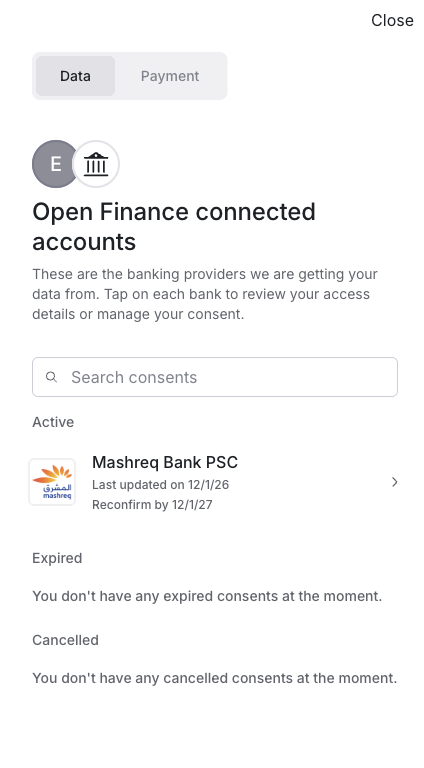
The manageConsents flow allows your end-users to view and manage their OpenFinance data consents and payment consents.
To present the consent to the customer, call the manageConsents() function provided by the Lean Link SDK and pass the customer id:
Lean.manageConsents({
  app_token: "<your_app_id>",
  access_token: "<customer_access_token>",
  customer_id: "<from_query_param>",
  sandbox: true
})
This should result in a screen similar to
9. UX/UI guidelines
Branding Requirements
- Open Finance data sharing flows must follow Al Tareq branding rules defined by CBUAE / Nebras.
- The Lean SDK automatically applies compliant Al Tareq branding for all Open Finance–initiated flows.
- Legacy RE flows are not subject to Al Tareq branding requirements.
Bank Selection Screens
- If you use a custom bank selection screen, you may continue to do so during migration.
- Lean will automatically route users to:
- Open Finance flow if the bank is OF-enabled
- RE flow if the bank is not yet OF-enabled
- When a bank is OF-enabled, the default user journey will be Al Tareq–branded, even if the account was previously connected via RE.
- Once all banks are migrated, your bank selection screen must comply with Al Tareq branding rules.
Updated 3 days ago