
Manage Payment Links and usages
Learn how to find existing Payment Links in the Lean Dashboard, inspect usages, view collected identifiers, and disable or re-enable links.
Overview
Use the Lean Dashboard v2 or Payment Links API to find existing Payment Links, understand how they are being used, and control whether they can accept new payments.
A Payment Link is the hosted payment page you created and shared with your customer.
A usage is one customer payment attempt through that link. It is created when the customer submits the required identifiers on the hosted page and clicks Pay. Each usage helps you understand what happened for that attempt, including its usage status, payment status, collected identifiers, and linked IDs such as payment_id or customer_id when available.
View Payment Links
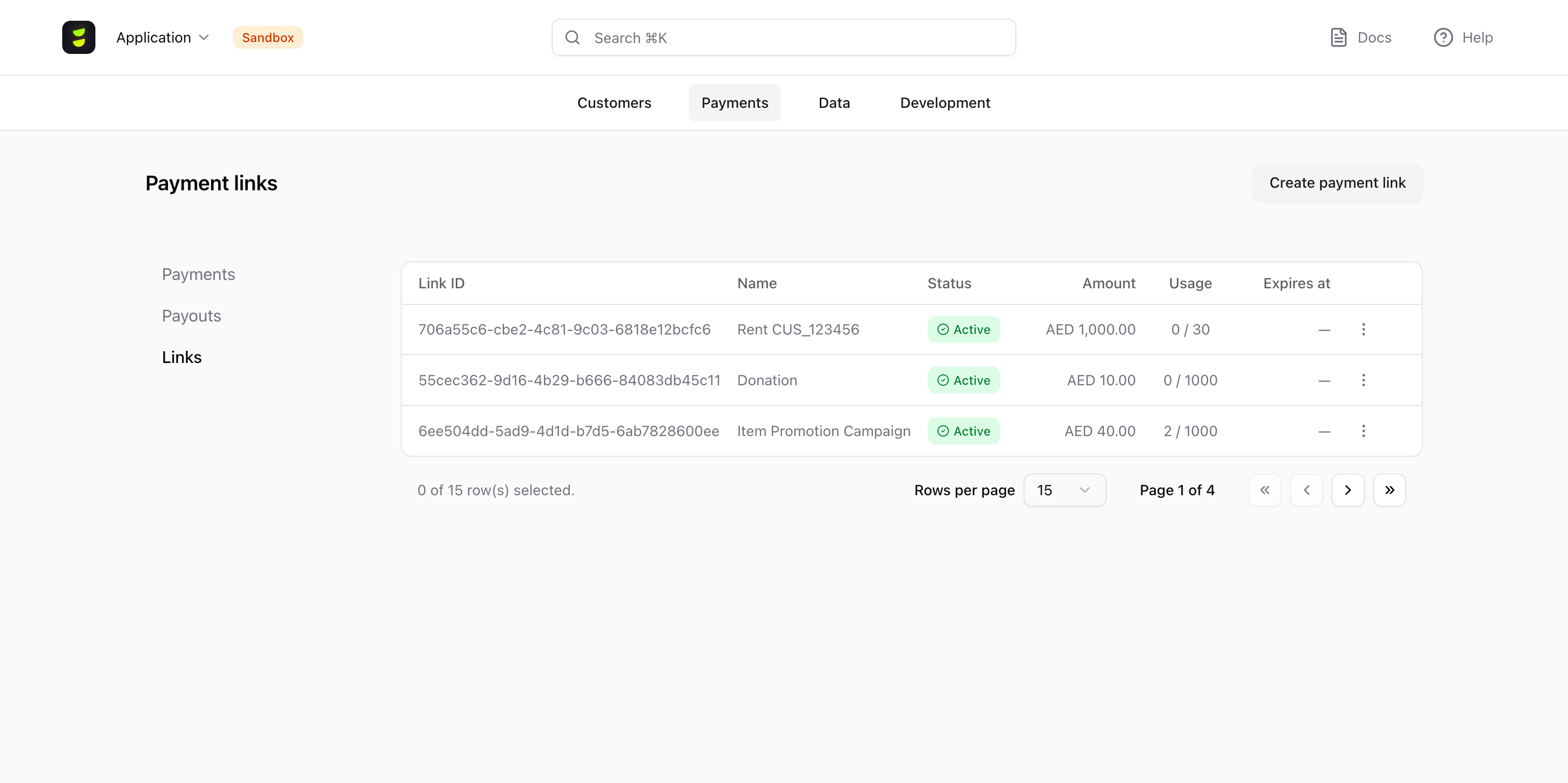
Open Payments > Links to view all Payment Links created for your application.
The list page shows each link's ID, name, status, amount, usage count, and expiry in one table. Click a Link ID to open that link's details page. Use Create payment link in the top-right when you need a new link.
Use this page to quickly answer questions such as which links are still active, which links have already expired or been used, and which link you need to open to investigate a payment attempt.
Links can appear as ACTIVE, DISABLED, EXPIRED, or USED. For the full lifecycle behavior, see Payment Link lifecycle.
If a link has no expiry, the Expires at column may show —.
Use the List Payment Links API to retrieve your existing Payment Links.
Use this operation when you need to build an internal list view, page through large numbers of links, or find links by their current state before taking another action.
The response is designed for high-level management. The id identifies the link, name helps your team recognize it, status shows whether it is currently usable, and current_usages, max_usages, and expires_at help you understand how much availability remains. The link field gives you the hosted URL again when you need to re-share it without creating a new Payment Link, while redirect_url confirms where the customer is sent after the flow ends.
Use the optional page and size query parameters to paginate through results.
curl -X GET "https://api2.leantech.me/payment-links/v1?page=0&size=20" \
-H "Authorization: Bearer <your_token>"{
"content": [
{
"current_usages": 0,
"customer_id": "f47ac10b-58cc-4372-a567-0e02b2c3d479",
"expires_at": "2026-04-30T23:59:59Z",
"id": "a1b2c3d4-e5f6-7890-abcd-ef1234567890",
"identifiers": [
{
"type": "EMAIL",
"display_label": "Your email address",
"required": true
}
],
"link": "https://secure.leantech.me/pay/bed3bf92-3b0a-4f75-8cf2-94355bbb915a",
"name": "April Rent Collection",
"max_usages": 1,
"payment_details": {
"destination_id": "9b1deb4d-3b7d-4bad-9bdd-2b0d7b3dcb6d",
"reference": "RENT-APR-2024",
"currency": "AED",
"amount": 1500,
"payment_purpose": "RNT"
},
"redirect_url": "https://your.domain.com/payments/complete",
"status": "ACTIVE"
}
],
"page": {
"size": 20,
"number": 0,
"total_elements": 1,
"total_pages": 1
}
}View Payment Link Details
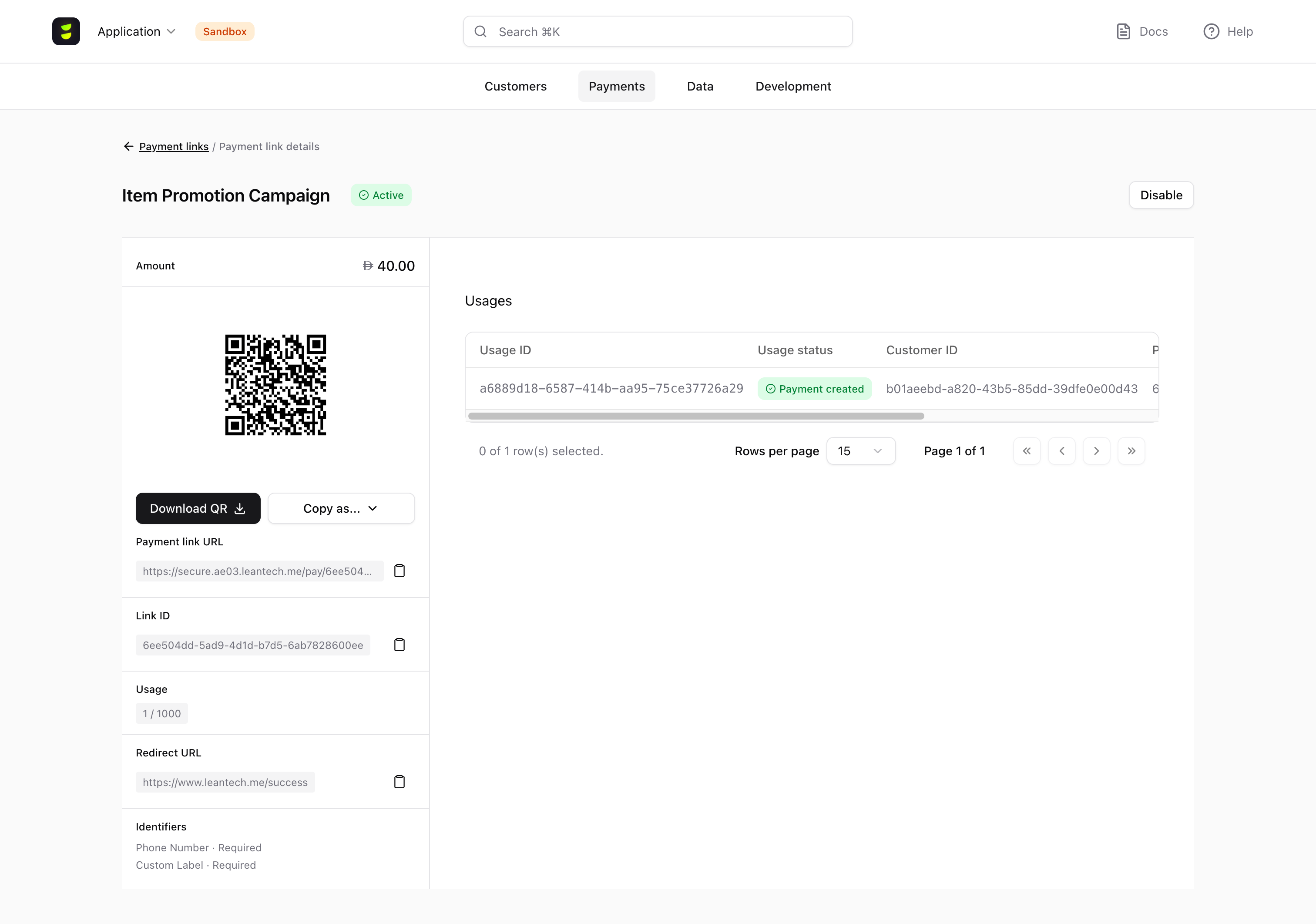
Click a Link ID to open dashboard.leantech.me/payments/links/{link_id}.
The details page brings together the link's current status, amount, expiry, hosted URL, QR code, configured identifiers, redirect_url when set, and its current usage count. Use this page when you need the current state of one link. It combines the link configuration, sharing actions, and usage history in one place, so it is the main page for day-to-day management after creation.
Use the Get Payment Link API to retrieve the current state of a single Payment Link.
Use this operation when you already know which link you want to inspect and need its current status, usage count, sharing URL, and payment details.
Compared with the list response, this response is better when you need the full configuration for one link. It brings together the hosted URL, status, usage information, redirect_url, and payment details in one object so you can inspect or display the current state of that link. Fields such as payment_details.reference, payment_details.currency, and payment_details.amount tell you exactly what the link is configured to collect, while current_usages, max_usages, and expires_at tell you whether the link is still practical to reuse.
curl -X GET "https://api2.leantech.me/payment-links/v1/a1b2c3d4-e5f6-7890-abcd-ef1234567890" \
-H "Authorization: Bearer <your_token>"{
"current_usages": 0,
"customer_id": "f47ac10b-58cc-4372-a567-0e02b2c3d479",
"expires_at": "2026-04-30T23:59:59Z",
"id": "a1b2c3d4-e5f6-7890-abcd-ef1234567890",
"identifiers": [
{
"type": "EMAIL",
"display_label": "Your email address",
"required": true
}
],
"link": "https://secure.leantech.me/pay/bed3bf92-3b0a-4f75-8cf2-94355bbb915a",
"name": "April Rent Collection",
"max_usages": 1,
"redirect_url": "https://your.domain.com/payments/complete",
"payment_details": {
"destination_id": "9b1deb4d-3b7d-4bad-9bdd-2b0d7b3dcb6d",
"reference": "RENT-APR-2024",
"currency": "AED",
"amount": 1500,
"payment_purpose": "RNT"
},
"status": "ACTIVE"
}Share the Payment Link
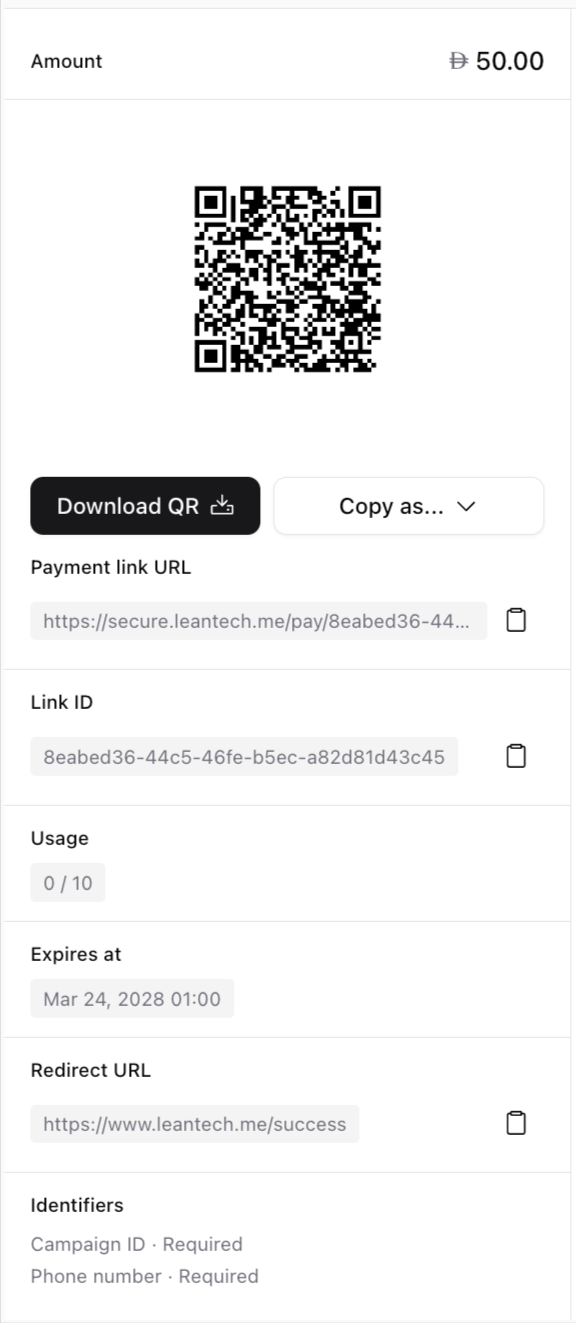
When you need to send the same Payment Link, the details page lets you quickly share the hosted URL or download the QR code. This is useful when a customer needs the link resent, or when you want to place the QR code in a printed invoice, point-of-sale flow, or other offline journey.
Use the List Payment Links API or Get Payment Link API when you need to retrieve the hosted Payment Link URL.
In both responses, the link field gives you the hosted URL without creating a new Payment Link. Use the list operation when you need to search across many links, and use the single-link operation when you already know the link you want to re-share.
The redirect_url field also confirms where the customer is sent after the flow ends.
Review Payment Link Usages
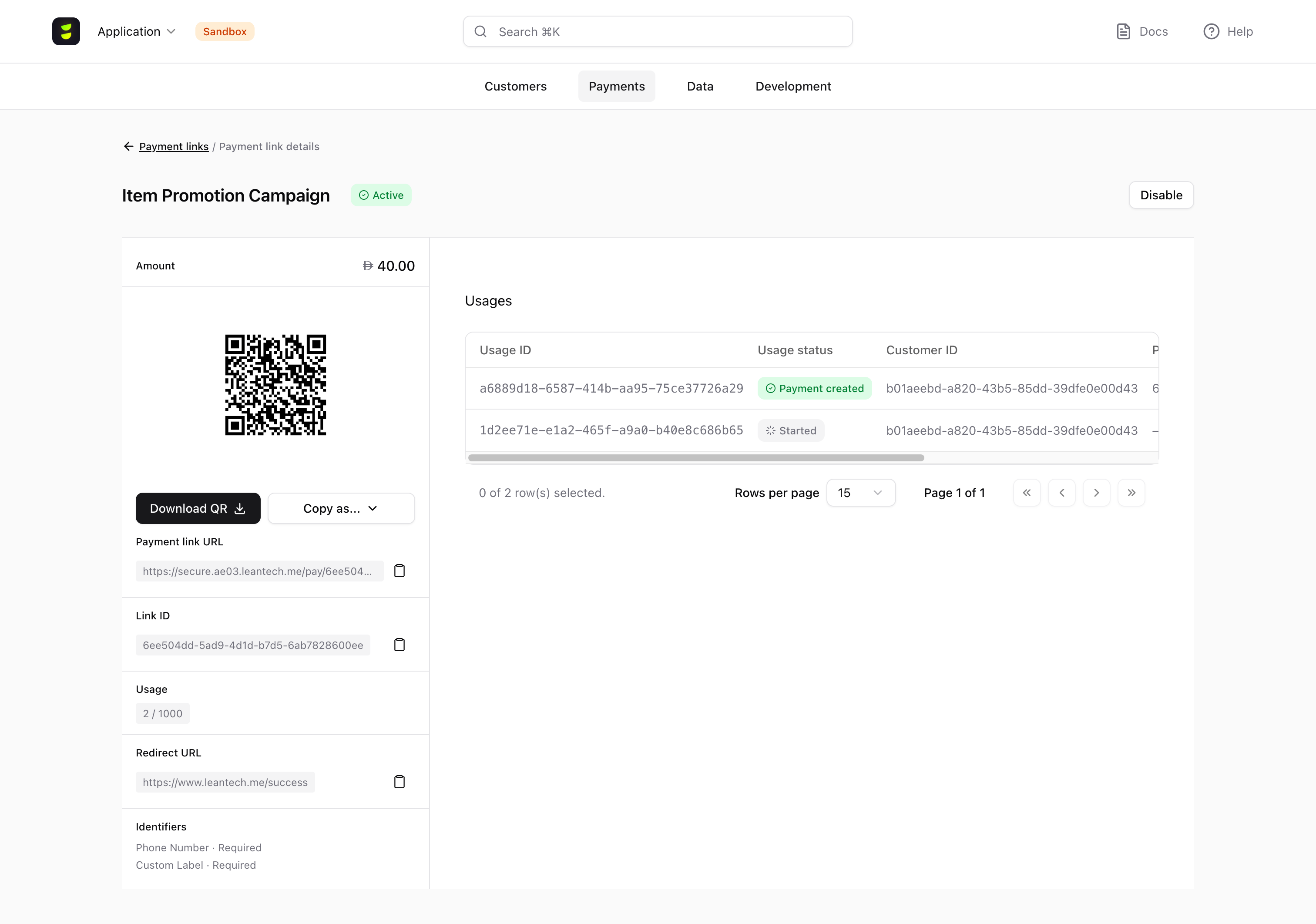
A usage represents one customer payment attempt through the Payment Link. It is created when the customer submits the required identifiers on the hosted page and clicks Pay. Simply opening or loading the link does not create a usage. Reviewing usages helps you understand whether customers are opening the link, whether a payment was created for that attempt, and which identifiers were captured during checkout.
Use the Usages table to review the history of a link, check whether a payment was created for a specific attempt, view the usage status and payment status, and find any identifiers collected for that attempt.
For details on how usage limits affect link status, see the Payment Link lifecycle section below.
Use the List Payment Link Usages API to retrieve usage history for a specific Payment Link.
Use this operation when you need the full history for one link. Each item in the response represents one usage and can include usage status, payment status, identifiers, customer_id, and payment_id.
This is the best operation to call when you want to understand how a link has actually been used over time.
This response is especially useful when you are troubleshooting or reconciling payments. The usage_status field shows how far each interaction progressed, payment_status shows the state of the underlying payment when available, and customer_id and payment_id help you connect the usage to the related Lean records. The collected identifiers are returned in the identifiers array for each usage item, so this is where you look when you need the captured email, phone number, or text field value for a specific interaction.
curl -X GET "https://api2.leantech.me/payment-links/v1/d290f1ee-6c54-4b01-90e6-d701748f0851/usages?page=0&size=20" \
-H "Authorization: Bearer <your_token>"{
"content": [
{
"usage_id": "3fa85f64-5717-4562-b3fc-2c963f66afa6",
"payment_link_id": "d290f1ee-6c54-4b01-90e6-d701748f0851",
"usage_status": "PAYMENT_CREATED",
"customer_id": "a3bb189e-8bf9-3888-9912-ace4e6543002",
"payment_id": "7c9e6679-7425-40de-944b-e07fc1f90ae7",
"payment_status": "PENDING",
"identifiers": [
{
"type": "EMAIL",
"display_label": "Email address",
"value": "[email protected]"
}
]
}
],
"page": {
"number": 0,
"size": 20,
"total_elements": 1,
"total_pages": 1
}
}View Usage Details
Click any row in the Usages table to open a side drawer. The Dashboard does not navigate to a separate page for usage details.
Use the drawer when you need to inspect one payment attempt in detail. This is where you can review the identifier values captured during checkout and confirm which records were created for that usage.
This is also the easiest place to grab a specific Usage ID, Customer ID, or Payment ID when you need to reconcile a payment or share details with your team.
For more on configuring identifiers, see Create and configure a Payment Link.
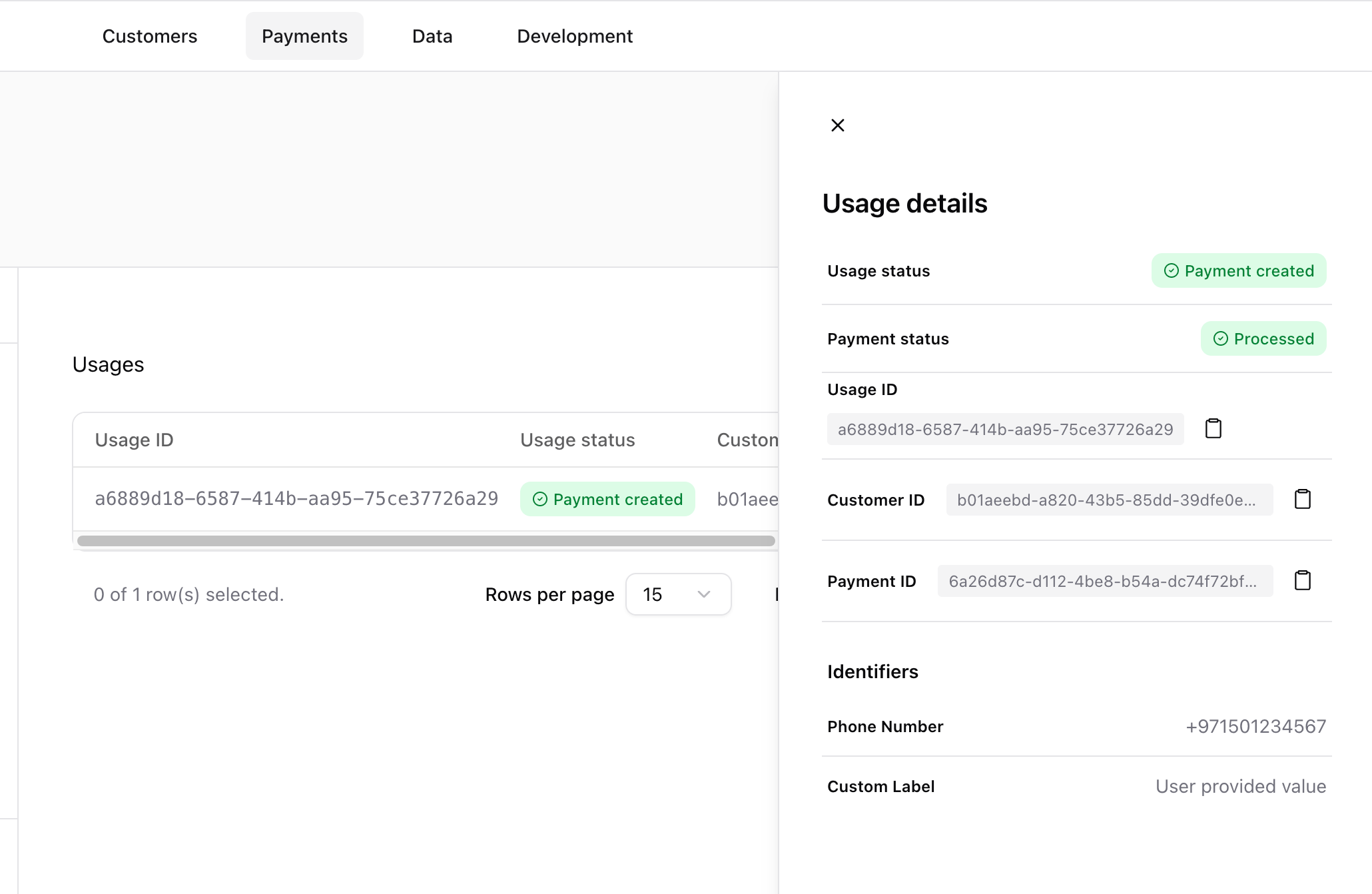
Use the Get Payment Link Usage API to retrieve one usage and its collected identifiers.
Use this operation when you already know the usage you want to inspect and need the full record for that specific interaction.
This is the most useful response when you need the exact details for one attempt. The usage_status field tells you how far that interaction progressed, payment_status shows the state of the underlying payment when available, and customer_id and payment_id let you connect the usage to the related Lean records. The identifiers array is where you access the values collected during checkout for that usage. If the link collected additional customer fields, those captured values appear here together with the usage and payment state.
curl -X GET "https://api2.leantech.me/payment-links/v1/d290f1ee-6c54-4b01-90e6-d701748f0851/usages/3fa85f64-5717-4562-b3fc-2c963f66afa6" \
-H "Authorization: Bearer <your_token>"{
"usage_id": "3fa85f64-5717-4562-b3fc-2c963f66afa6",
"payment_link_id": "d290f1ee-6c54-4b01-90e6-d701748f0851",
"usage_status": "PAYMENT_CREATED",
"customer_id": "a3bb189e-8bf9-3888-9912-ace4e6543002",
"payment_id": "7c9e6679-7425-40de-944b-e07fc1f90ae7",
"payment_status": "PENDING",
"identifiers": [
{
"type": "EMAIL",
"display_label": "Email address",
"value": "[email protected]"
},
{
"type": "MOBILE_PHONE",
"display_label": "Mobile number",
"value": "+971501234567"
}
]
}payment_id and payment_status can be null immediately after usage creation and are populated after the payment is processed.
Use this operation when you need to inspect or store the collected identifier values for a specific interaction, or when you need to confirm the exact Usage ID, Customer ID, or Payment ID linked to that usage.
Accessing collected data
When a customer submits the required fields and clicks Pay, Lean creates a usage for that payment attempt.
Any identifier values the customer entered are shown on that usage.
In Lean Dashboard v2, you can access this data from the payment link's details page under Usages.
Click any usage to open its details. The usage details drawer shows the collected identifier values together with the usage status, payment status, Payment ID, and Customer ID, when available.
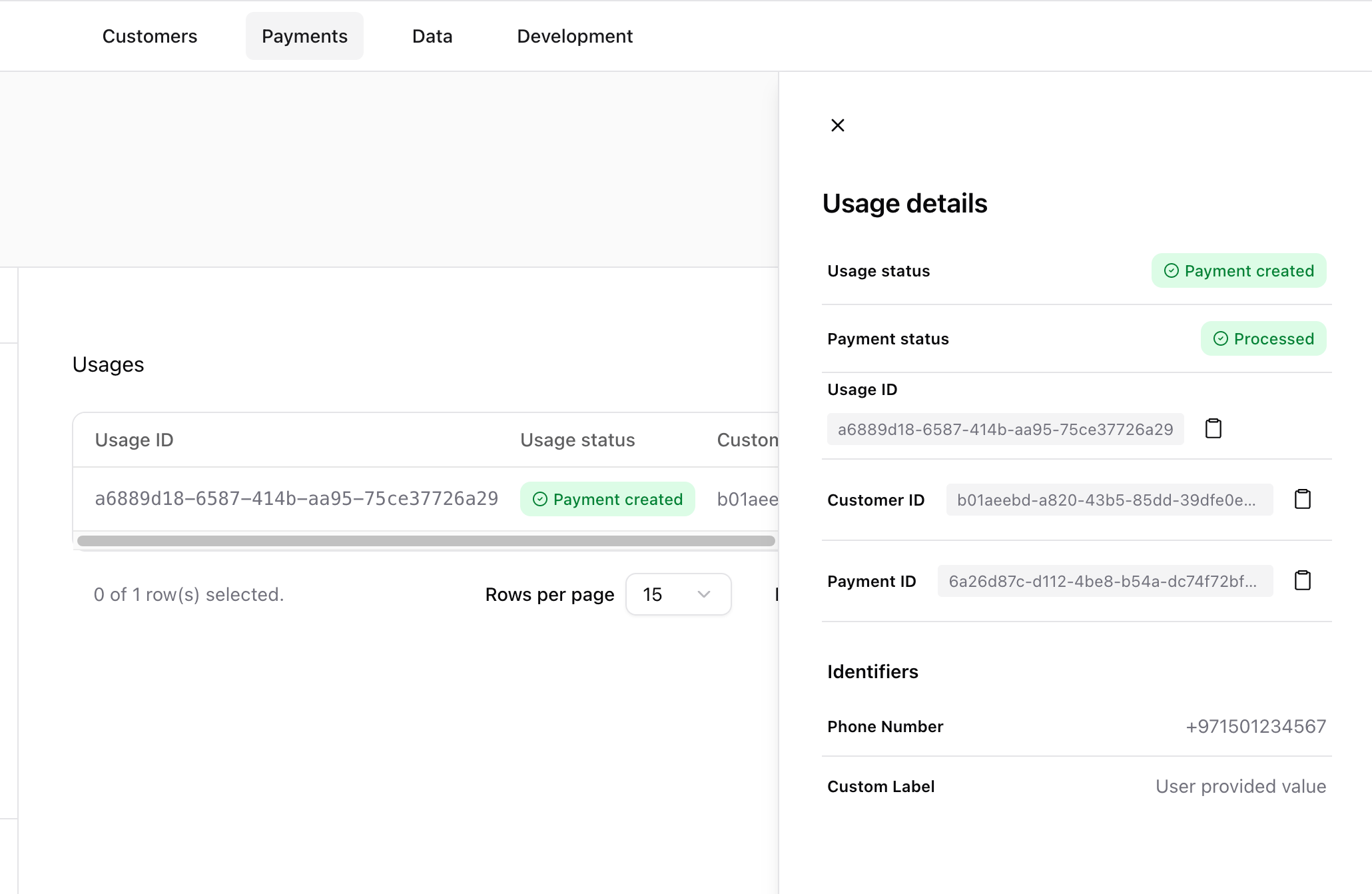
Use the List Payment Link Usages API to retrieve collected data for a specific Payment Link.
Use this operation when you need the collected data across all attempts on one link. Each item in the response represents one usage and can include collected identifiers, usage status, payment status, customer_id, and payment_id.
If you need the collected data for one specific attempt, use the Get Payment Link Usage API to retrieve the full record for that usage.
This response is especially useful when you need to inspect or reconcile the data captured during checkout. The collected identifiers are returned in the identifiers array for each usage item, while usage_status, payment_status, customer_id, and payment_id help you understand what happened for that attempt and connect it to the related Lean records.
curl -X GET https://api.leantech.me/payment-links/v1/26b69ba5-0447-45b6-be7d-376d6b432843/usages
-H "Authorization: Bearer <your_token>"curl -X GET "https://api2.leantech.me/payment-links/v1/d290f1ee-6c54-4b01-90e6-d701748f0851/usages/3fa85f64-5717-4562-b3fc-2c963f66afa6" \
-H "Authorization: Bearer <your_token>"{
"usage_id": "3fa85f64-5717-4562-b3fc-2c963f66afa6",
"payment_link_id": "d290f1ee-6c54-4b01-90e6-d701748f0851",
"usage_status": "PAYMENT_CREATED",
"customer_id": "a3bb189e-8bf9-3888-9912-ace4e6543002",
"payment_id": "7c9e6679-7425-40de-944b-e07fc1f90ae7",
"payment_status": "PENDING",
"identifiers": [
{
"type": "EMAIL",
"display_label": "Email address",
"value": "[email protected]"
},
{
"type": "MOBILE_PHONE",
"display_label": "Mobile number",
"value": "+971501234567"
}
]
}Disable or Re-enable a Payment Link
Use Disable on the Payment Link details page to stop the link from accepting new payments.
This is useful when you want to pause a campaign, replace a link with a new one, or temporarily stop new payments without removing the existing record.
Before the change is applied, the Dashboard shows a confirmation modal. After you confirm, the link status updates to DISABLED and customers can no longer use that link to start a new payment.
Disabling a link is reversible. After a link is disabled, the Disable button changes to Enable.
Use Enable to allow the link to accept payments again, as long as the link has not already reached a terminal lifecycle state such as EXPIRED or USED. For the full lifecycle rules, see Payment Link lifecycle.
Use the Update Payment Link API to change a link's status to DISABLED or ACTIVE.
Use DISABLED when you want to stop new payments without immediately creating a replacement link. Use ACTIVE to restore a previously disabled link.
This operation does not change the link's payment configuration. It only changes whether the existing link can currently accept new payments.
curl -X PUT "https://api2.leantech.me/payment-links/v1/a1b2c3d4-e5f6-7890-abcd-ef1234567890" \
  -H "Authorization: Bearer <your_token>" \
  -H "Content-Type: application/json" \
  -d '{
    "status": "DISABLED"
}'curl -X PUT "https://api2.leantech.me/payment-links/v1/a1b2c3d4-e5f6-7890-abcd-ef1234567890" \
-H "Authorization: Bearer <your_token>" \
-H "Content-Type: application/json" \
-d '{
"status": "ACTIVE"
}'Re-enabling works only for previously disabled links. Links in EXPIRED or USED status cannot be reactivated. For the full lifecycle rules, see Payment Link lifecycle.
Payment Link lifecycle
Use this section to understand how a Payment Link moves between statuses and what you can still change after creation.
Every Payment Link starts as ACTIVE when you create it and can move to DISABLED, EXPIRED, or USED depending on how you manage it and how customers use it.
%%{init: {'flowchart': {'curve': 'linear'}}}%%
flowchart LR
    classDef active fill:#16a34a,stroke:#15803d,color:#fff
    classDef muted fill:#64748b,stroke:#475569,color:#fff
    classDef terminal fill:#dc2626,stroke:#b91c1c,color:#fff

    ACTIVE:::active <-->|"Disable / re-enable"| DISABLED:::muted
    ACTIVE -->|"payment link expires"| EXPIRED:::terminal
    ACTIVE -->|"max_usages reached"| USED:::terminal
    DISABLED -.->|"payment link expires"| EXPIRED
| Status | What it means |
|---|---|
| ACTIVE | The link can accept new payments. |
| DISABLED | The link cannot accept new payments, but you can return it to ACTIVE unless it later reaches EXPIRED. |
| EXPIRED | The expiration time has passed. This is a terminal state. |
| USED | The link has reached its configured number of successful payments. This is a terminal state. |
Keep these rules in mind when you manage a link:
- You can change the link status between
ACTIVEandDISABLED. - You cannot reactivate a link after it reaches
EXPIREDorUSED. - Set link expiration when you create the link if it should stop accepting payments after a specific time.
- Limit max usages when you create the link if it should stop accepting payments after a fixed number of successful payments. The default usage cap is 1,000.
- If you need different expiry rules, usage limits, payment details, identifiers, or
redirect_url, create a new link.
Expired Link
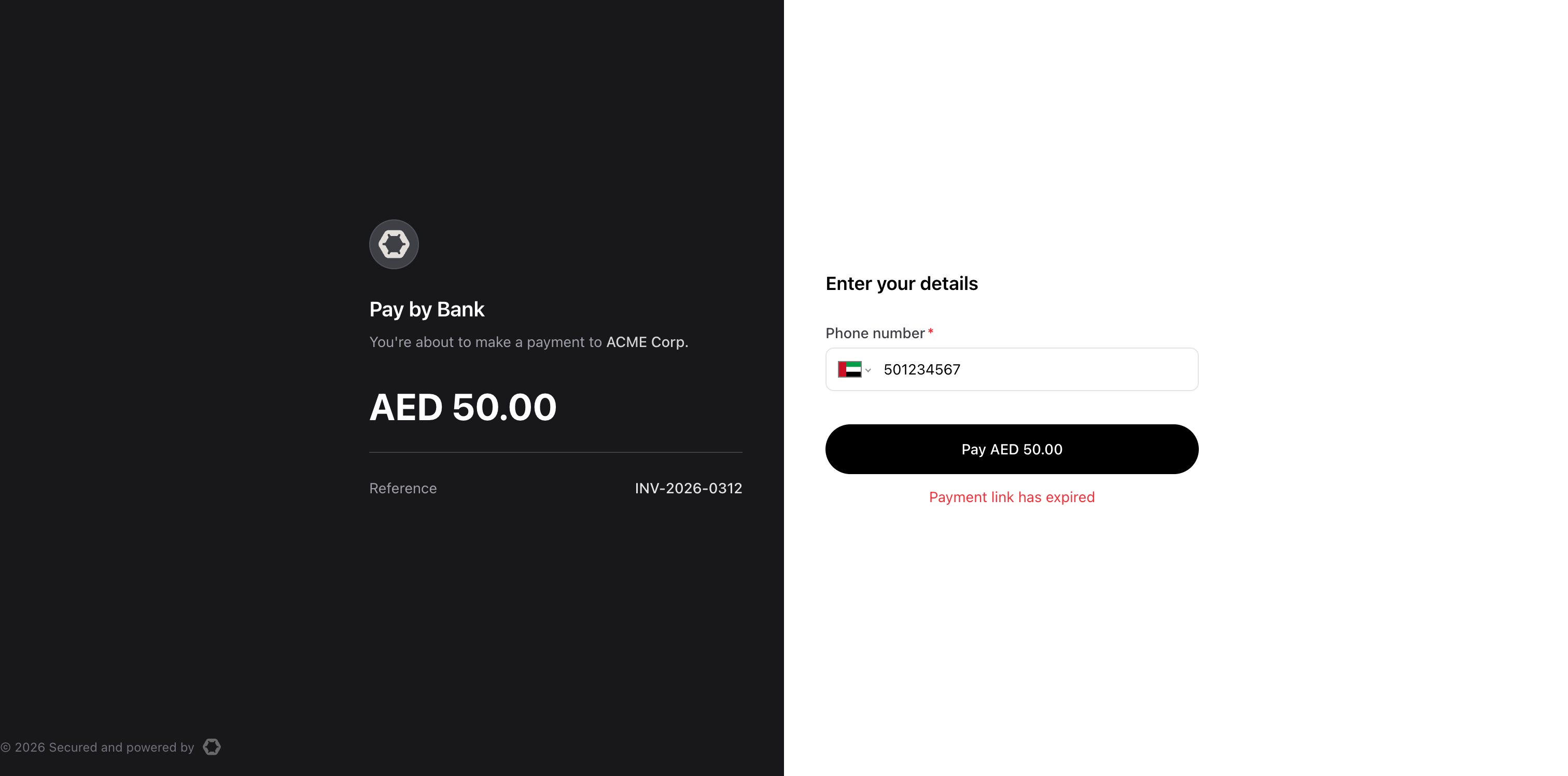
Customer trying to pay with an expired Payment Link
Disabled Link
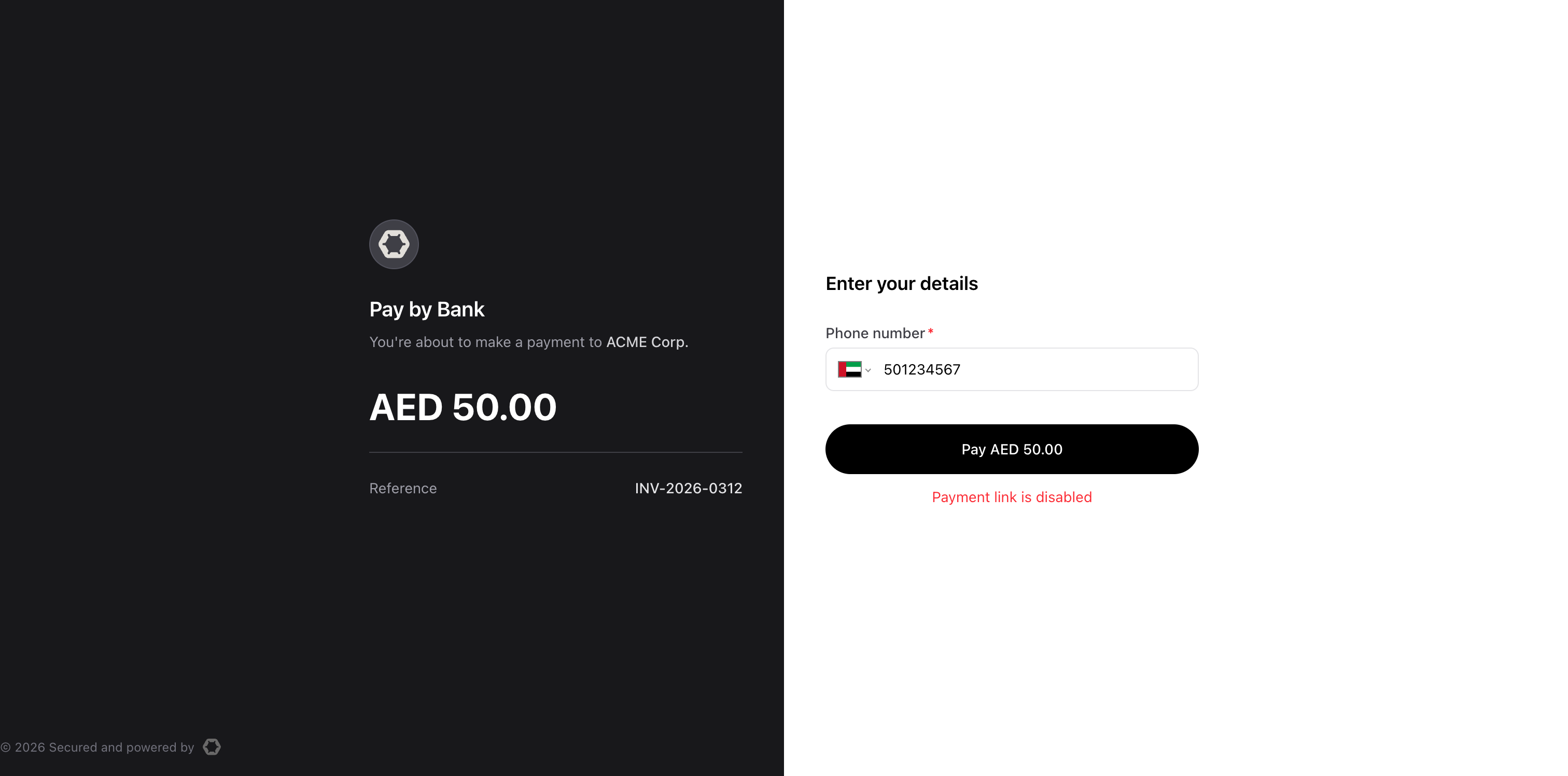
Customer trying to pay with a disabled Payment Link
Consumed Link
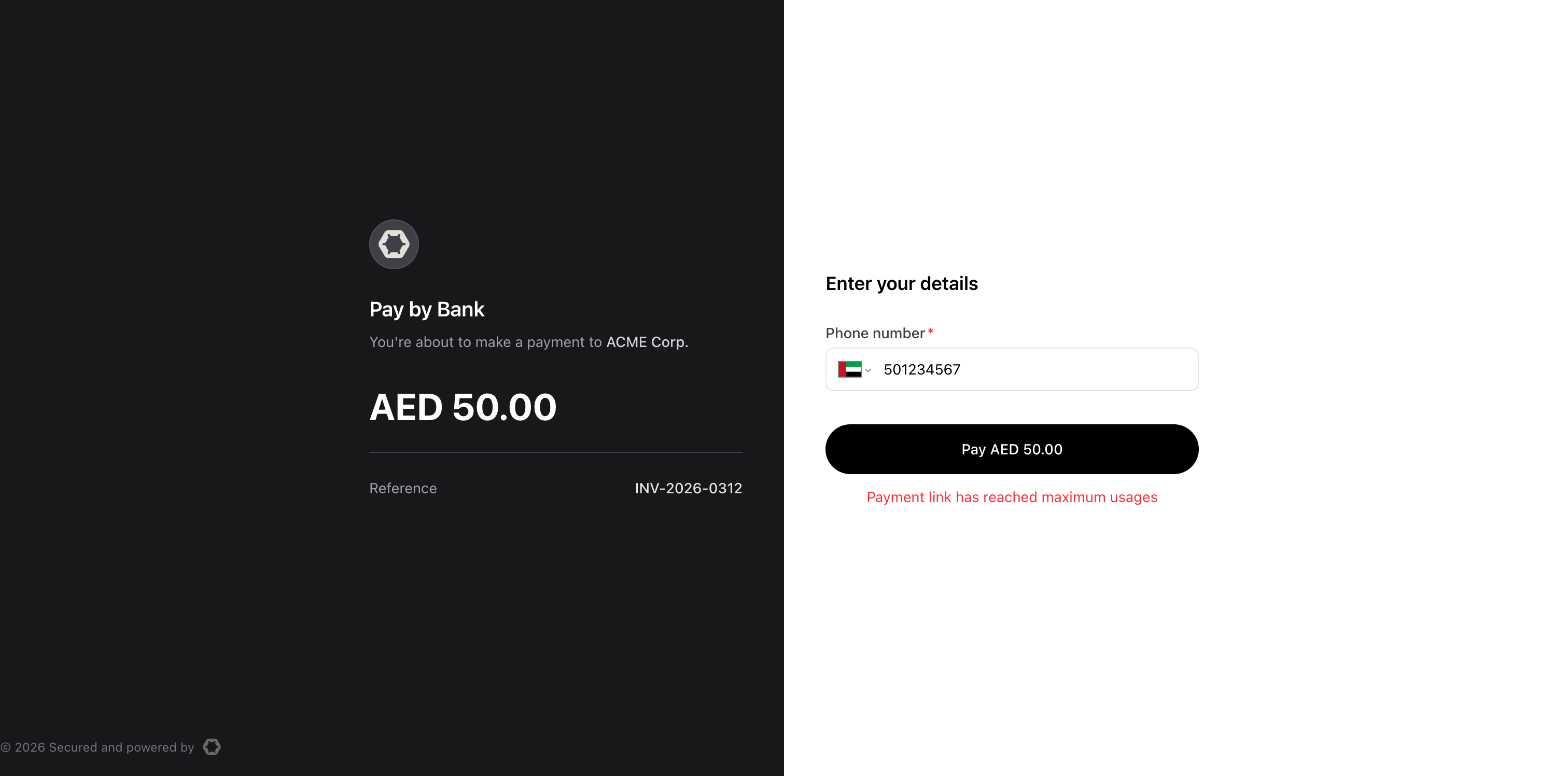
Customer trying to pay with a consumed Payment Link
Updated 6 months ago