
Sanad overview
Know how much to trust the device behind every login, payment and account change.
Sanad tells you how much to trust the device your customer is using, at the moment they log in, pay or change their details. A small SDK in your app reads technical signals from the device and sends them to Lean. Lean recognises the device, compares it with what it has seen before, and returns an assessment to your backend. Your backend then decides what to do: allow the action, ask for another check such as an OTP, or block it.
What Sanad answers
Every assessment answers four questions, one per module:
| Module | Question | Examples of what it catches |
|---|---|---|
device_integrity | Is the device genuine and untampered? | Emulators, rooted or jailbroken phones, hooking tools, automated browsers |
network_analysis | Does the network look risky? | VPNs, hosting providers and Tor, an IP shared by many devices |
location_analysis | Do the location signals agree with each other? | A time zone that doesn't match the IP, a mocked GPS location |
device_relationships | How does this device relate to its history and to your customers? | A brand-new device, a device shared by several customers, repeated reinstalls |
Each module comes back with a status and the labels that fired, such as root_access_detected or vpn_detected. See Modules and labels for the full list.
How it works
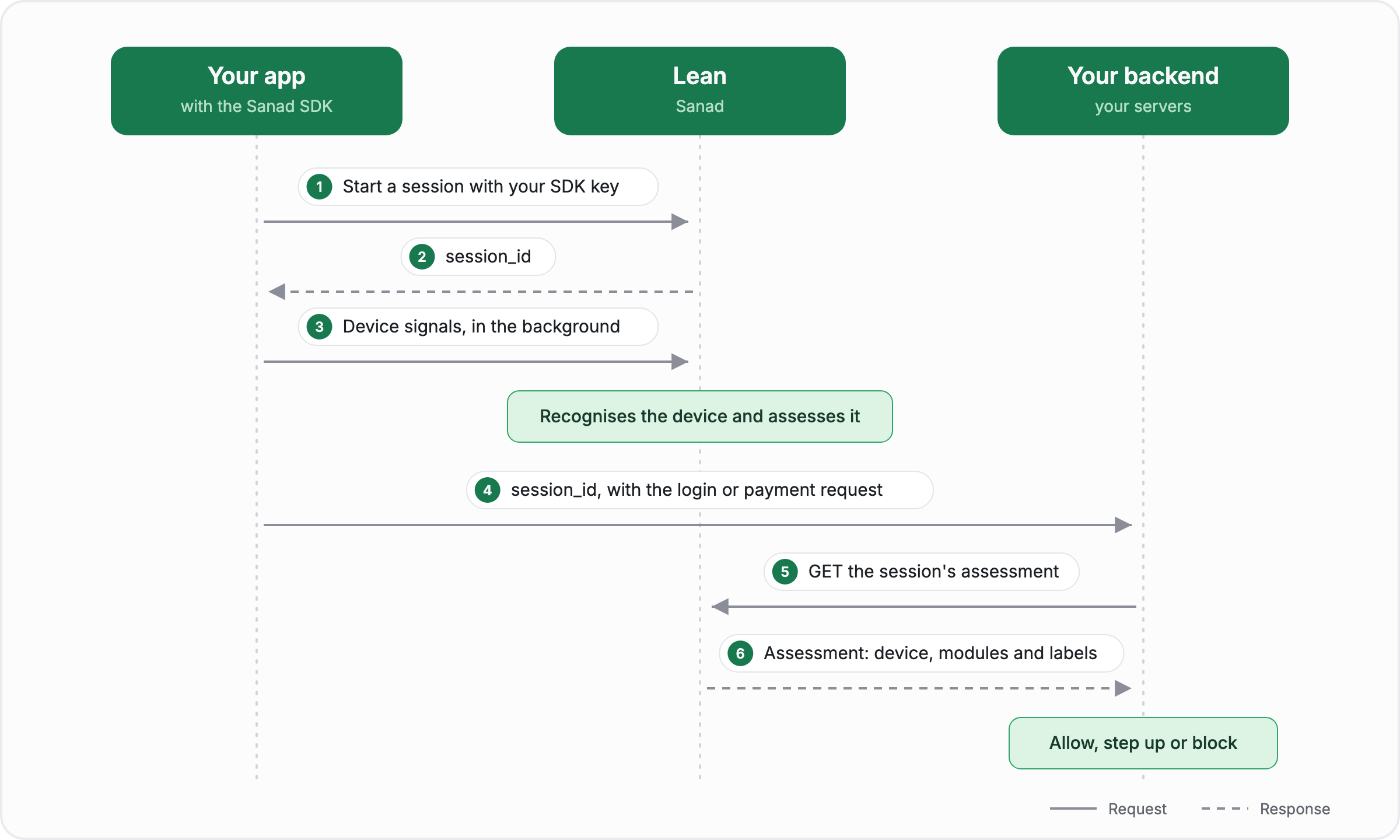
- Your app starts the SDK with an SDK key. The SDK opens a session with Lean and gives your app a
session_id. - The SDK reads device signals in the background (integrity, network, hardware, and location if your app has permission) and sends them to Lean. Your app never handles the signals itself.
- Lean assesses the device a moment after the signals arrive. It recognises the device across sessions, checks its history and evaluates every label.
- Your app sends the
session_idto your backend, together with a request it already makes, such as a login or a payment. - Your backend gets the assessment of that session from Lean and decides what to do.
- Optionally, your backend links the session to a Lean customer. This turns on the labels that compare a device with the customer's other devices and locations. See Linking customers.
The decision belongs on your backendThe SDK never returns a verdict to your app. An app runs on a device a fraudster may control, so a decision made there could be tampered with. Your backend reads the assessment directly from Lean.
Key terms
| Term | Meaning |
|---|---|
| SDK key | The key your app uses to start the SDK. It identifies your application and its environment (sandbox or production). It can only open sessions and send signals, so it's safe to ship in your app. |
| Session | One run of your app, from the moment the SDK starts until the app closes. Your app passes the session's session_id to your backend. |
| Assessment | Lean's result for a session: the device, and the status and labels of each module. Each new set of signals produces a new assessment, and Lean always returns the newest. |
| Device | Lean's identity for the physical phone or browser, such as dvc_3f9a…. It stays the same across sessions, and across app reinstalls where the platform allows. |
| Label | One finding, such as emulator_detected. |
| Customer | The Lean customer, created with the Create Customer API, that your backend links to a session. |
Supported platforms
| Platform | SDK | Minimum version |
|---|---|---|
| Android | me.leantech.device:lean-device-android | Android 8.0 (API level 26) |
| iOS | Swift package LeanDevice | iOS 16 |
| Web | Loader script from sanad.leantech.me | Any modern browser |
Use the same SDK key in your Android, iOS and web builds. Lean assesses all sessions of one application together, so a customer moving between your app and your website is recognised as the same customer.
Get started
Updated about 1 hour ago